Restore product images
XO Image Styles backs up your original images before processing them. You can restore them by image style, by product, or for the whole store.
Restore an image style
Navigate to the Styles page, then click Restore on the style and confirm. All images processed by this style go back to their original version.
Restore selected products
- Navigate to Settings.
- In the Restore n images section, click Restore selected products.
- Choose one or more products, then click Restore images to confirm.
Restore all images
Navigate to Settings and click Restore all images, then confirm. Every processed image in your store goes back to its original version.
Restore all images is only available on paid plans. See Plans.
Follow the restore
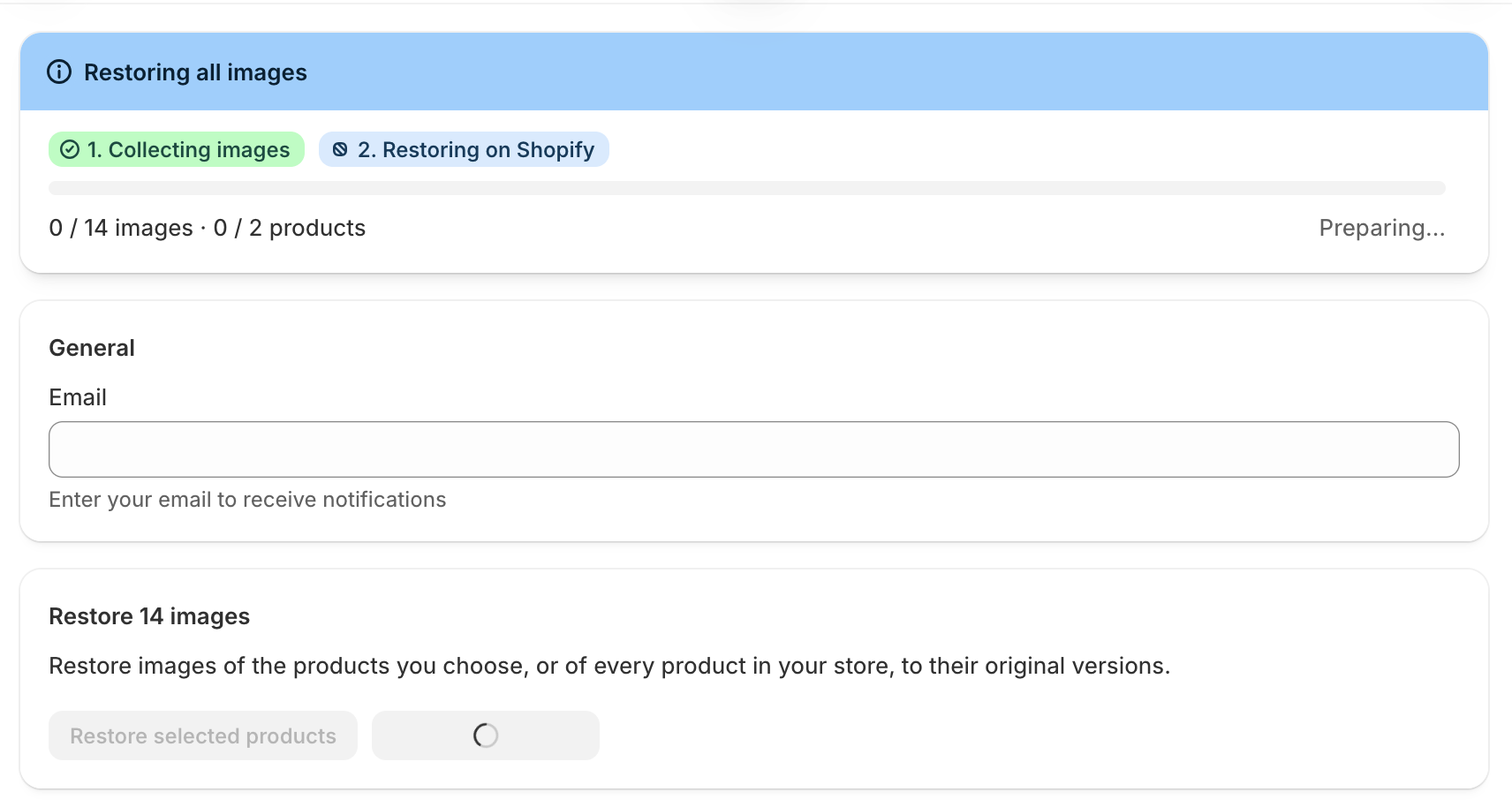
A progress banner shows the restore while it runs, and the restore buttons are disabled until it finishes. If some images couldn't be restored, a n failed badge shows in the style's Status column, or next to the restore buttons on Settings for restores by product or for the whole store. Click it to see the images and retry. See Track progress and retry failed images.