Configuration
The XO Tunnel home page lists your Shopify blogs, plus three special rows: [Page], [Product] and [Collection]. Each row can be connected to one Notion database.
| Column | Meaning |
|---|---|
| Title | The blog name, or the special row. Click it to configure the row. |
| Type | blog, page, product or collection |
| Status | Connected when sync is enabled, otherwise Disconnected |
| Operations | Configure and Refresh |
[Page], [Product] and [Collection] are available on paid plans. See Plans.
Connect
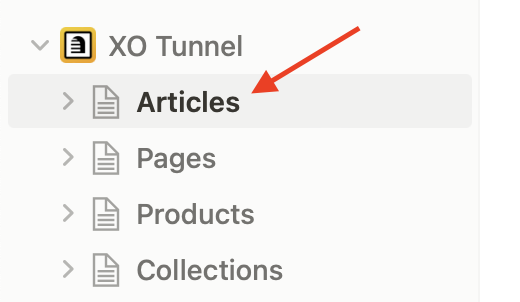
- In Notion, open the database you want to connect.
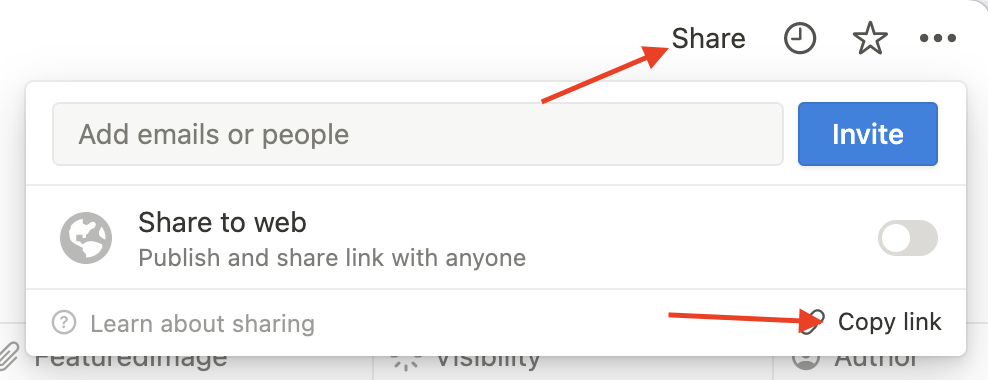
- Click Share, then Copy link.
- In XO Tunnel, click Configure next to your blog, [Page], [Product] or [Collection]. The modal title shows which row you are configuring.
- Check Enable sync with Notion and paste the link from step 2 in Notion database link.
- Click Save.
Each Notion database can only be connected to one row. If you paste a database that is already used, the app shows an error.
Sync options
In the Configure sync modal you can also set:
- Auto sync (paid plans): XO Tunnel checks your Notion database every hour and syncs the changes to Shopify.
- Sync deletions (blogs and pages only): when you delete a post or page in Notion, XO Tunnel deletes it in Shopify too.
Products and collections
When you connect [Product] or [Collection] and click Save, XO Tunnel copies your products or collections to the Notion database. The first sync might take a while.
After that:
- Edit the product or collection description in Notion, then click Refresh to update Shopify.
- New products and collections you create in Shopify are added to the Notion database.
- Products and collections you delete in Shopify are archived in Notion.
Refresh
Click Refresh to sync a database right away. XO Tunnel shows how many changes it found and asks if you want to update them in your Shopify store now. After the update, a banner lists the posts, pages or descriptions that changed, with links to open them.
Your storefront might not show the change right after Refresh. Wait 10 to 20 seconds for Shopify to clear its cache.
On the Free plan, a Post limit reached banner appears when a blog reaches the plan limit. Posts over the limit are not created until you upgrade.
Unlink
To stop syncing a row, click Configure, then Unlink and confirm. For blogs and pages, check Unlink sync to also delete the posts or pages that XO Tunnel published to Shopify.
Unlinking cannot be undone.